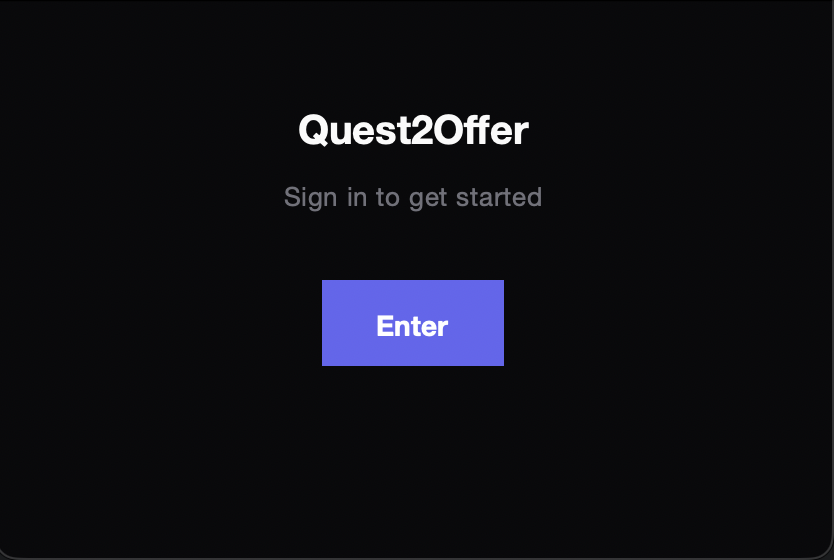
🔐 On first launch, macOS will ask for the following permissions:
- Screen & System Audio Recording — required to capture system audio from calls.
If the app does not ask automatically:
① Open System Settings → Privacy & Security → Screen & System Audio Recording
② Click "+" at the bottom of the list
③ Navigate to Applications → select Quest2Offer → click Open
④ Enable the toggle next to Quest2Offer
⑤ Restart the app - Microphone — required to record your voice during sessions.
macOS will show a dialog automatically. If not — add manually in System Settings → Privacy & Security → Microphone.
Quest2Offer does not record your screen — only audio. If the app shows "Server unavailable" after granting permissions, restart it.
Run the installer and follow the setup wizard. Sign in with your Quest2Offer account.
On macOS, allow Screen Recording permission in System Settings → Privacy & Security → Screen Recording so the app can capture system audio.
No additional setup needed on Windows — WASAPI loopback capture is built-in.
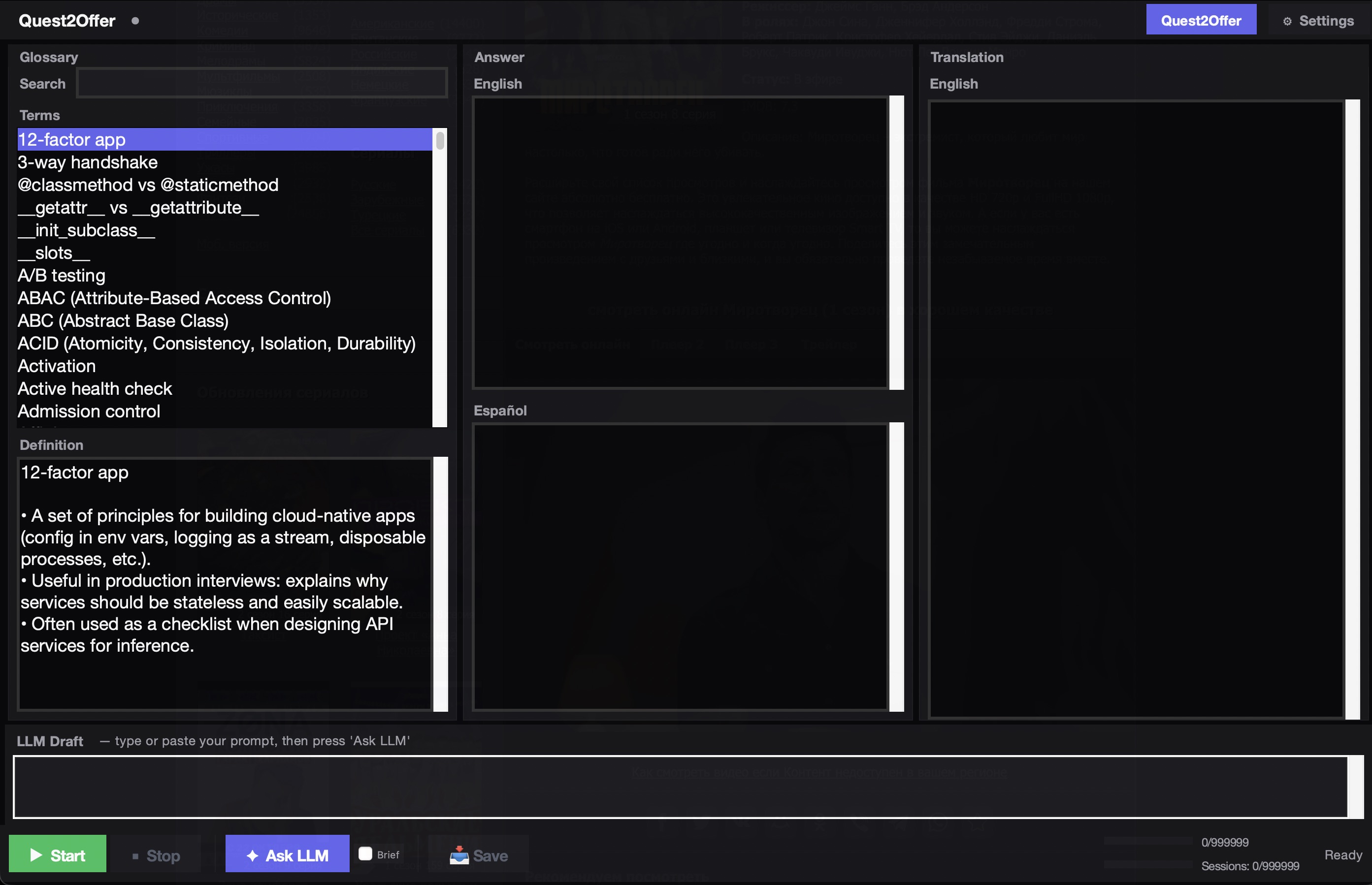
- Left panel
- — Glossary & key terms
- Center panel
- — Answer (bilingual)
- Right panel
- — Real-time translation
- Bottom bar
- — Refine Request input & Ask button
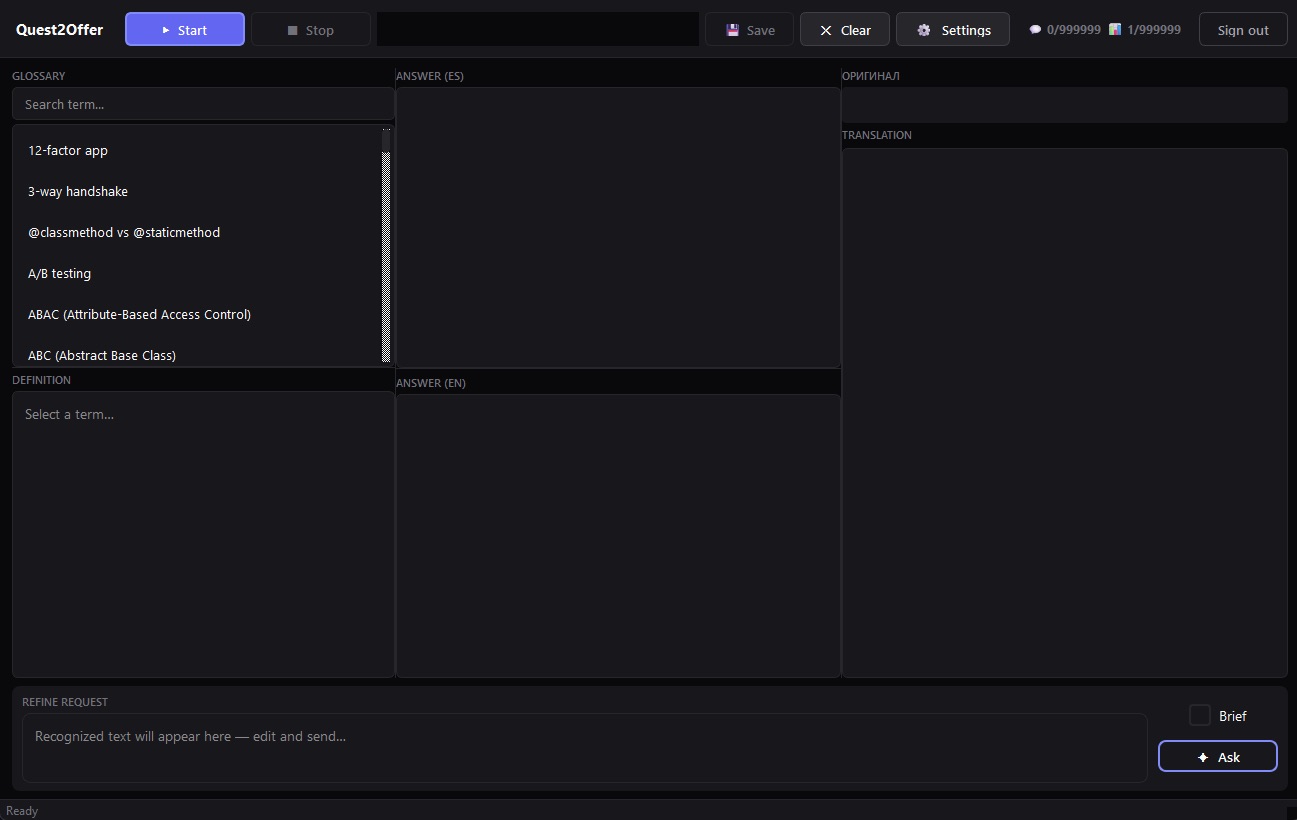
- Left panel
- — Glossary & key terms
- Center panel
- — Answer (bilingual)
- Right panel
- — Real-time translation
- Bottom bar
- — LLM Draft input & Start / Stop / Ask LLM controls
💡 Start the app 2–5 minutes before your call so everything is ready when the interview begins.
Settings
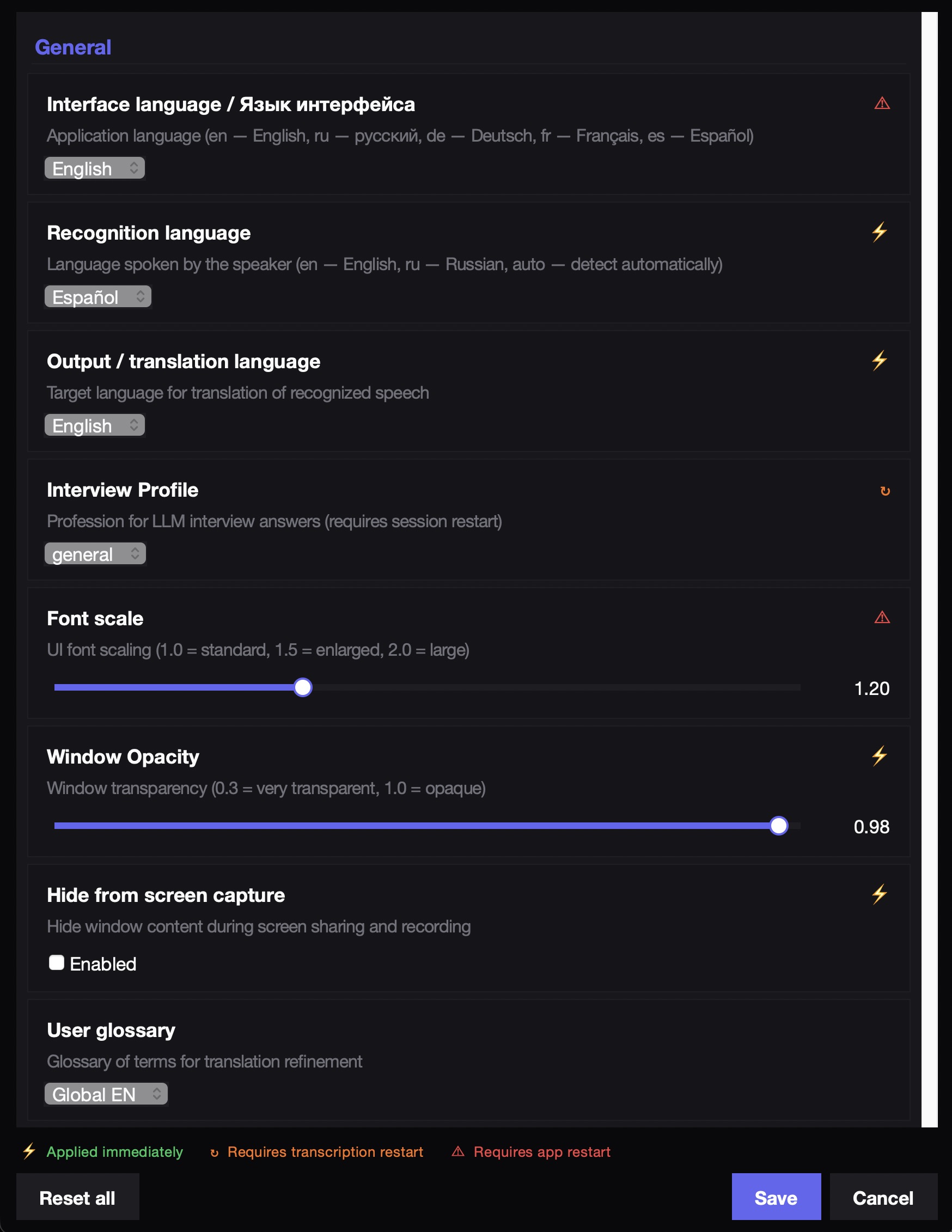
Customize the app to match your interview setup. Open Settings via the gear icon or Cmd + ,
Customize the app to match your interview setup. Open Settings via the gear icon or Ctrl + ,
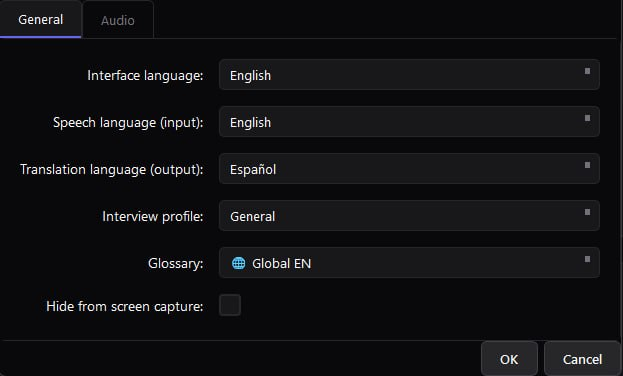
- Recognition language — what language is being spoken
- Output language — translation target
- Interview Profile — loads domain-specific terms
- Font scale / Opacity — adjust readability
- Hide from screen capture — invisible to screen sharing